Find a better way to fit.
Compare up to three automatic cut plans for your printer. Review part counts, estimated seam visibility and connector placement, then preview before applying.
From oversized models to articulated designs and layered filament art. Plan your cuts, protect the details and turn images into printable creations — all on your computer.
Apple Silicon · macOS 13 or later · Version 0.2.63 · 272 MB
Intel/AMD x64 · Windows 10/11 · Version 0.2.63 · 245 MB
Free 3-day trial · Every tool included · No card required
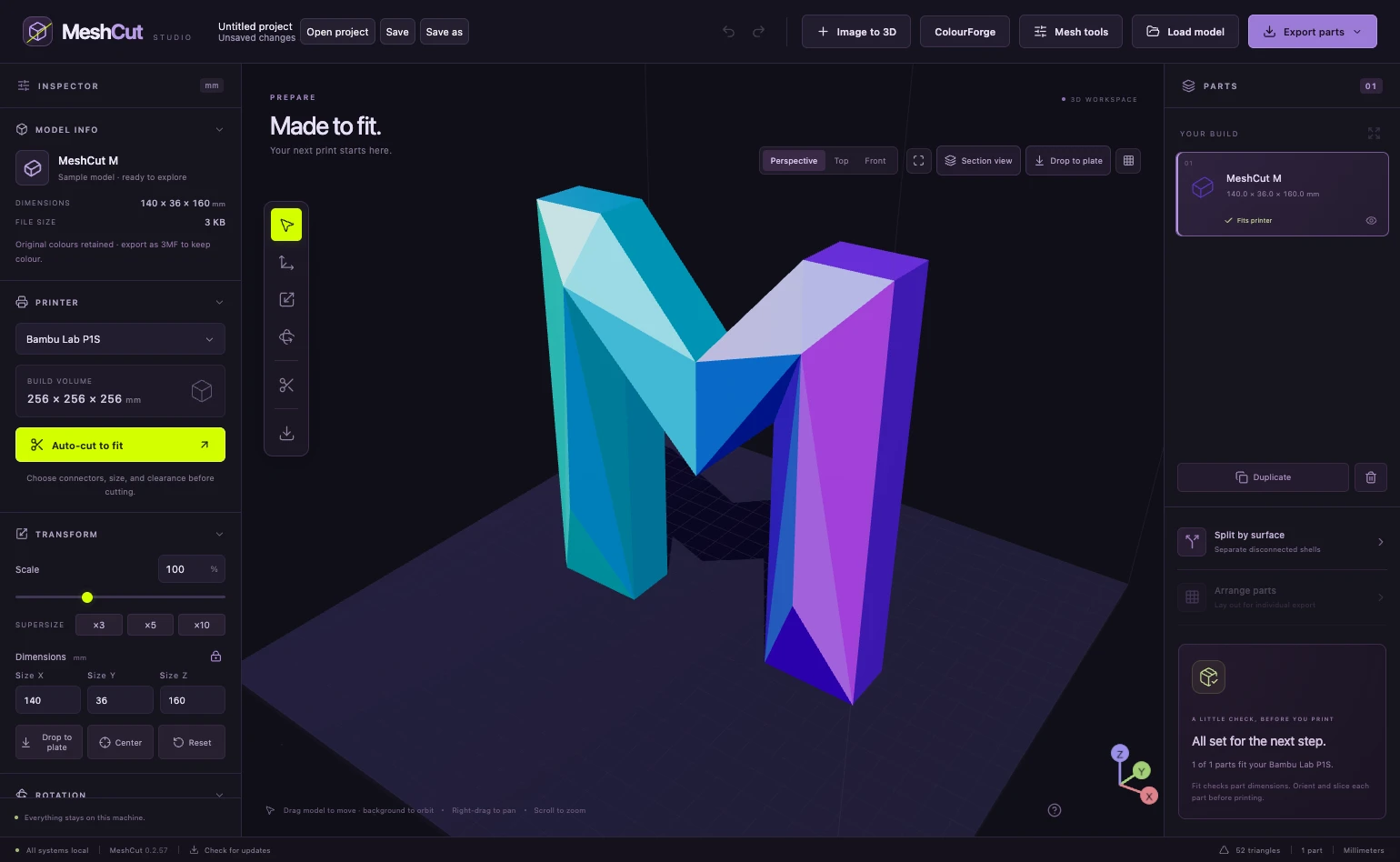
Prepare a model, build movement into it or start with an image. Keep your work together with saved projects and Undo/Redo.
Compare up to three automatic cut plans for your printer. Review part counts, estimated seam visibility and connector placement, then preview before applying.
Paint protection over faces, lettering and details to guide automatic cuts away from them. Add connectors and matching join numbers, with clearance presets and calibration pieces to check your fit.
Choose original hooks, reinforced rounded chain links, pin hinges or a custom cutter. Place joints automatically, pick positions or draw a curved spine. Test a small joint for your printer and material.
Create image reliefs and portrait depth, with cutouts and open frames. Portrait depth runs locally, so you can work with your own images on your computer.
Hollow, repair, simplify and smooth a whole model or brush selected areas. Inspect with Section view, preserve supported 3MF colours and use Thermal to generate forming moulds and a flat blank.
Save portable MeshCut projects with autosave and recovery. Inspect exploded parts, export STL or 3MF, or send your model to your chosen installed slicer.
Turn photos and artwork into layered filament paintings. Shape the image, choose your colours and preview how the layers come together.
Colour previews are estimates. Use calibration swatches with your real filaments to refine the result.
Layer illustration · Your palette, your design
MeshCut prepares the geometry and, for supported ColourForge slicer projects, the layer changes. Open the result in your slicer, review your printer and material settings, then slice and print.
Your free 72-hour trial starts when you choose to activate it online. Every available feature and export is included. No card details and no automatic charge when it ends.
After your trial, one payment unlocks lifetime access and free future updates. Cutting, flexi joints, image reliefs and ColourForge are all included.
Yes. ColourForge, cutting, mesh tools, image reliefs and flexi joints are included in the same trial and lifetime licence. There is no separate ColourForge subscription.
STL and geometry-only 3MF exports can be opened in compatible slicers. ColourForge can also import supported Bambu / Orca-family and PrusaSlicer / SuperSlicer project profiles to carry layer settings and change events. Use manual pauses or automatic changes where your printer supports them. Cura and unrecognised profile formats require manual setup. Always open the exported project in your slicer and review settings, layer markers and filament assignments before printing.
No. You can use manual filament changes at the indicated layers. Supported automatic systems can use profile-based changes instead. The colour count is a design limit, not a promise that every printer can load that many filaments at once.
MeshCut supports Apple Silicon Macs (M1 or later) running macOS 13 or later, and Intel/AMD x64 computers running Windows 10/11. Intel Macs, Windows ARM and 32-bit Windows are not supported by these installers. The Mac edition is not Apple-notarised and macOS may block it. The Windows installer is unsigned and may show an unknown-publisher warning. Updates download an installer; you finish installation yourself.
On Mac, open the DMG and drag MeshCut into Applications. On Windows, run the EXE installer; Node.js and developer tools are not required. Open MeshCut and choose Start my free 3-day trial. Installation does not require a purchase. Save your .meshcut project before closing the app to install an update. Projects support autosave and recovery; replacing or updating the app preserves activation and preferences.
Editing and tools require a lifetime licence after the 72-hour trial. You can still view and export models already in your open workspace. Reinstalling or installing an update does not restart the trial. Nothing is charged automatically.
Your lifetime licence stays with you, and future updates are free. Replacing the app keeps activation data outside the app bundle. You can activate your existing key on up to two computers; deactivate an old computer to free a slot when moving.
Starting the trial and activating a purchase need an internet connection. A paid licence needs an online check at least every 30 days, without another payment. Update checks and downloads also use the internet. Geometry is processed on your computer; your models are not uploaded to the licensing server.
After a verified payment, your key is shown on the purchase page and queued for your PayPal purchase email. Save that email. If you lose it, recover your existing key using the same purchase email. Delivery may take time; check your spam folder too.
Activation sends a hashed computer identifier and computer name to the MeshCut licensing server. Paid activation also uses your purchase email and licence key. PayPal handles payment. Google delivers purchase and recovery emails using your purchase email and licence key. Update downloads come through the MeshCut server; your GitHub account is not needed.